
For sellers on Amazon, Flipkart, AJIO, Myntra and Meesho. Updated May 2026.
Direct Answer
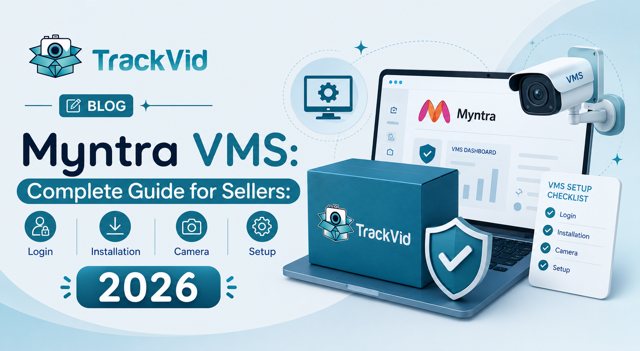
Myntra VMS is the video management system Myntra requires every seller to run. It records packing, links each video to its order, and supplies the evidence Myntra asks for on a disputed return. Sellers reach it through the seller portal and fit a camera at the packing table.
Myntra VMS, the Video Management System, is a mandatory tool for every seller on Myntra's platform. If you are searching for the Myntra VMS login, trying to understand Myntra VMS installation, looking for the right Myntra VMS camera, or figuring out how the Myntra VMS system works, this guide covers everything in one place.
The most important fact first: Installing Myntra's VMS tool to record forward packing video is mandatory. Packing videos aid Myntra's customer care team in resolving disputes, prevent misuse of the return facility, and are required for sellers to maintain eligibility for the Seller Protection Fund (SPF).
Sellers who have not gone live on Myntra VMS are already operating without SPF protection. Every return claim they file is at risk of rejection not on the merits of the dispute but on the absence of compliant packing video. This guide explains what the Myntra VMS system is, how to access the login portal, how to install and set it up, what camera and software you need, and how to make it work for your specific warehouse.
What Is Myntra VMS? The Myntra Video Management System Explained
The Myntra VMS is a video management system that records every order packing session at the seller's warehouse and links each recording to the specific Order ID being packed. This is not a security camera system. It is a purpose-built packing documentation tool.
The core function: when a seller packs an order for dispatch on Myntra, the VMS records the packing session from start to seal. The footage captures the product, the label, the MRP sticker, the condition of the item before sealing, and the dispatch reference. This video is stored and linked to the Order ID.
When a buyer raises a WPR (Wrong Product Return) dispute or any other return-related claim, Myntra's customer care team accesses the packing video for that specific Order ID. If the video shows the correct product being packed in good condition, the seller wins the dispute. If no video exists or the video does not meet quality standards, the claim defaults against the seller.
The Myntra VMS system converts packing into verifiable evidence. Without it, a seller's word against a buyer's word is all that exists for dispute resolution. With it, the specific dispatch event is permanently documented.
Myntra VMS Login: How to Access the Portal
The Myntra VMS login is accessed through Myntra's official seller portal. Sellers can access the Myntra VMS login portal using their registered seller credentials on Myntra's official seller dashboard, where they can view and manage video documentation for order fulfillment.
Here is the step-by-step process for accessing the Myntra VMS login:
Step 1: Go to the official Myntra Seller Portal at seller.myntra.com. This is the only legitimate entry point. Do not use third-party links claiming to be the Myntra VMS login page.
Step 2: Log in with your registered Myntra seller credentials, the same username and password used for your regular seller account.
Step 3: Navigate to the VMS section within your seller dashboard. The exact location depends on your account type (PPMP or non-PPMP model), but it is accessible from the main navigation under your account settings or the Fulfilment section.
Step 4: From the VMS dashboard, you can view your VMS status, check whether your system is live, review recorded videos, and manage your camera integration.
If you cannot log in to Myntra VMS: Contact Myntra Seller Support directly through the official support portal at myntrasellersupport.freshdesk.com. Do not share your seller credentials with any third-party service claiming to manage your Myntra VMS login on your behalf.
Common Myntra VMS login issues and fixes:
- Forgotten password: Use the "Forgot Password" option on the seller portal login screen. The reset link goes to your registered email address.
- Account not showing VMS section: Your account may not yet be activated for VMS. Contact seller support to request VMS activation for your seller ID.
- VMS status showing inactive: You are registered but not yet live. Complete the installation steps outlined in the next section.
Myntra VMS Installation: Step-by-Step Setup Guide
Myntra VMS installation involves hardware setup at your packing station and software configuration that links your camera to your Myntra seller account.
What You Need Before Installation
Before beginning Myntra VMS installation, confirm you have:
- An HD-compatible camera that can be fixed above or angled at your packing station. Myntra's quality requirement specifies that footage must clearly show the product label and item condition. A standard security CCTV camera is generally not sufficient for Myntra VMS compliance because the resolution and angle for security monitoring rarely match the close-up, label-visible footage Myntra's dispute process requires.
- A stable internet connection at the packing station for real-time video upload or for syncing to the VMS software.
- Your Myntra seller ID and registered email address ready for the software registration step.
Myntra VMS Installation Steps
Step 1: Download or access the Myntra VMS tool. The official Myntra VMS software is available through your seller dashboard. Log in to the Myntra VMS login portal and navigate to the VMS setup section. Follow the download or access link provided. Do not download VMS software from any source other than Myntra's official portal.
Step 2: Install the Myntra VMS software on your packing station computer or device. Follow the installation wizard. Accept the permissions required for camera access and video upload.
Step 3: Connect and position your camera. Mount the camera above your packing table so that the product label, MRP, and full product face are clearly visible in the frame. Test the live feed in the VMS interface before recording any orders. The camera position for Myntra VMS compliance requires the product label to be readable in the footage.
Step 4: Register your camera with the Myntra VMS system. Once the camera is connected and positioned, complete the registration step within the VMS software. This links your camera to your seller account.
Step 5: Run a test recording. Pack a sample order with a dummy product and review the footage in the VMS dashboard. Confirm the product, label, and condition are clearly visible. Show the recording to a team member and ask if the label text is readable. If yes, your Myntra VMS installation is functionally complete.
Step 6: Go live. Once the test is satisfactory, set your VMS status to active in the seller dashboard. From this point, every order packed at your station should be recorded.
Myntra VMS Camera: What You Need and What Works
The Myntra VMS camera requirement is the most commonly misunderstood part of the setup. Many sellers install their existing CCTV and assume it meets the standard. It often does not.
What Myntra VMS requires from your camera:
- High-definition resolution, typically 1080p as a minimum, sufficient to produce footage where product labels are readable without zooming in on the playback. Wide-angle CCTV installed for security coverage of a large floor area does not produce this quality at the packing station level.
- Fixed positioning above or directly in front of the packing surface. The camera cannot be handheld during packing. It must be mounted so that every packing event at that station is automatically captured from a consistent angle.
- Adequate and consistent lighting coverage of the packing surface. Footage taken under poor or inconsistent lighting is rejected on quality grounds regardless of camera resolution.
Camera types that work for Myntra VMS:
- A dedicated HD USB or IP camera mounted on a camera arm or wall bracket above the packing table. This is the most practical and cost-effective setup for most sellers. Cameras in the Rs 2,000 to Rs 8,000 range from established brands are generally sufficient.
- A smartphone mounted on a fixed holder can be used for low-volume operations, but must be in a fixed position during packing and must produce consistent HD footage throughout the shift.
What does not work:
- Ceiling-mounted CCTV positioned for floor coverage. The distance and angle make product labels unreadable.
- Handheld phone recording. Not fixed, not consistent, not compliant.
- Low-resolution cameras from legacy DVR systems. The footage quality does not meet Myntra's readable-label standard.
Myntra VMS Software: What the Tool Does and What to Look For
The Myntra VMS software is the system that connects your camera to your seller account, records and stores packing videos, and links each recording to the Order ID being packed.
The official Myntra VMS tool is provided directly by Myntra through your seller dashboard. It handles the core requirement: recording packing sessions and storing them in a format Myntra's dispute team can access when a WPR claim is raised.
However, many sellers find the official Myntra VMS tool has limitations that become apparent at scale.
Common limitations sellers report with the standard Myntra VMS tool:
- Manual order matching: in some configurations, the seller needs to manually identify or confirm which Order ID a recording corresponds to, which introduces human error at high volumes.
- Limited claim automation: the standard Myntra VMS system records and stores video but does not automatically file claims when eligible returns arrive or track the 7-working-day dispute window.
- Single-platform: the official Myntra VMS tool works for Myntra only. Sellers operating on Flipkart, AJIO, Meesho, Snapdeal, and Amazon alongside Myntra need separate systems or manual adaptation for each channel.
What to look for in a Myntra VMS software solution:
- Automatic Order ID linking at the moment of packing, without manual entry.
- Cloud storage indexed by Order ID so any packing video is retrievable in under two minutes by order number.
- Multi-platform coverage so the same recording infrastructure serves Myntra, Flipkart, AJIO, and other channels simultaneously.
- Claim automation so eligible returns trigger automatic filing within Myntra's dispute window, not manual batch processing.
Myntra VMS Video: What a Compliant Recording Looks Like
Understanding what a compliant Myntra VMS video actually contains is the difference between a setup that works and one that produces footage Myntra rejects.
A compliant Myntra VMS video for a single order should show: the product placed on the packing surface before wrapping, the MRP sticker and product label clearly readable in frame, the item's condition before sealing, any accessories or components included in the parcel, and the parcel being sealed. The entire Myntra VMS video for one order is typically 30 to 90 seconds depending on the product type.
The most common reason a Myntra VMS video is rejected in a WPR dispute: the label is in frame but not readable because the camera is too far away or at an angle. The fix is camera repositioning, not camera replacement.
For multi-SKU orders, the Myntra VMS video should show each item individually before placing it in the shipping bag. This creates clear per-item evidence that every component was included and in the correct condition.
Every Myntra VMS video must be linked to the specific Order ID at the time of recording. A video without an Order ID link cannot be submitted as dispute evidence because Myntra cannot verify which dispatch it corresponds to. This is the most common structural gap in basic Myntra VMS setups: sellers have video but lack the linkage that makes it usable.
How TrackVid Works as a Myntra VMS Solution
TrackVid is an AI-powered video proof and claim management platform used by 1,100+ Indian ecommerce sellers. It functions as a fully compliant Myntra VMS software solution with automatic Order ID linking, HD recording, indexed cloud storage, and claim automation built in.
For Myntra specifically, TrackVid records every packing session in high-definition, automatically links each video to the Myntra Order ID at the moment of packing, stores it in searchable cloud indexed by order number, and monitors the 7-working-day dispute window per eligible return. When a return arrives, the correct packing video is retrieved in under two minutes and submitted as WPR dispute evidence.
Where TrackVid goes beyond the standard Myntra VMS tool: it covers Flipkart, AJIO, Meesho, and Snapdeal simultaneously from the same setup. Sellers who have already set up TrackVid for Flipkart or AJIO compliance extend it to Myntra with no additional hardware. The same camera, the same indexed archive, the same one-dashboard workflow.
TrackVid also handles the AJIO CCTV-required email automation that no standard VMS tool covers, the SPF claim automation for Flipkart with 14-day window tracking, and the email-based Nykaa dispute process with HD formatting. For multi-platform sellers, it replaces five separate processes with one.
TrackVid is officially authorised by Snapdeal, the only VMS and claim management system in India with that designation.
Setup: Works with existing cameras. Takes under 15 minutes. Myntra VMS compliance active from the first packing session.
Related: Why Indian ecommerce sellers need a VMS and what to look for →
Schedule a free demo at trackvid.in/book-demo.html
Why Myntra VMS Is Mandatory: The SPF Connection
The most important operational fact about Myntra VMS for sellers is that it gates SPF eligibility. Going live with VMS is required to maintain eligibility for Myntra's Seller Protection Fund (SPF), which compensates sellers for losses from wrong returns, damaged returns, and return-related fraud.
Sellers without active Myntra VMS compliance are not eligible for SPF claims. This means that every return dispute they raise, regardless of how legitimate the underlying claim is, cannot receive SPF compensation.
The reverse is equally significant. Sellers with active, compliant Myntra VMS and clear packing video evidence for every order can win the majority of their eligible WPR and return claims. The video shows the correct product being packed. The buyer's claim that a wrong or damaged product arrived does not survive comparison with that evidence.
Myntra VMS is not bureaucratic compliance. It is the protection system. The sellers who treat it as a checkbox complete the installation and capture low-quality footage. The sellers who treat it as a revenue protection tool invest in proper camera positioning, consistent lighting, and a software system that automates the Order ID linking and claim filing steps.
Punekar Seller Rohit: What Installing Myntra VMS Actually Changed
Rohit sells men's casual wear and accessories on Myntra PPMP from Pune, dispatching approximately 260 orders per day. He had completed the basic Myntra VMS installation in early 2025 after receiving the mandatory compliance notification. He had a camera over his packing table. He was technically live on VMS.
His Myntra claim success rate was 21 percent.
When he reviewed his rejections, the issue was camera positioning. His camera was mounted on the wall at an angle designed to cover the full packing station for monitoring purposes. At that angle, product labels were in-frame but not clearly readable. Myntra's review team was receiving footage that showed packing activity but could not verify the specific product label. Claims were being rejected on evidence quality grounds despite the VMS being active.
He repositioned the camera directly above the packing surface at a 90-degree downward angle and added a secondary light source to eliminate shadowing on labels. He also moved to TrackVid for the Order ID linking and claim automation.
Within 30 days, his Myntra claim success rate moved from 21 percent to 83 percent. Not because he had changed the camera, but because the footage it produced now actually met Myntra's label-readable standard.
I thought VMS compliance meant having the camera on. It actually means having the camera positioned so the evidence is usable. Those are very different things.
Five Questions to Know If Your Myntra VMS Setup Is Working
- When you play back a recent packing video in the Myntra VMS dashboard, can you clearly read the product label without zooming in? If you need to zoom to read the label, Myntra's review team cannot use that footage. Reposition the camera closer to the packing surface.
- Is your Myntra VMS status showing as active and compliant in your seller dashboard? Log in to the Myntra VMS login portal and check your status. If it shows inactive or pending, your SPF eligibility is not active.
- Can you retrieve the packing video for any specific Myntra Order ID from the last 30 days in under two minutes? If retrieval requires searching by date or manually reviewing a recording archive, your Order ID linking is not working correctly.
- When an eligible return arrives on a Sunday, is your team filing the Myntra dispute within 7 working days? If returns from Thursdays and Fridays regularly miss the window because they are processed in weekly batches, automation is needed.
- Are you running Myntra VMS and separate systems for each of your other platforms? If yes, consolidating to a multi-platform VMS like TrackVid replaces that fragmentation with one system covering all channels from the same camera setup.
Frequently Asked Questions
Myntra VMS kya hota hai?
Myntra VMS yaani Video Management System ek mandatory tool hai jo Myntra sellers ke liye forward packing video record karta hai. Yeh system har order ki packing session automatically record karta hai aur video ko specific Order ID se link karta hai. Jab buyer WPR (Wrong Product Return) ya koi aur return dispute raise karta hai, Myntra ki customer care team is video ko access karke verify karti hai ki sahi product pack kiya gaya tha ya nahi. Bina VMS ke Myntra sellers SPF (Seller Protection Fund) ke liye eligible nahi hote.
Myntra VMS login kaise kare?
Myntra VMS login ke liye Myntra ke official Seller Portal, seller.myntra.com, pe jaao. Wahan apne registered seller credentials se login karo jo aap regular seller account ke liye use karte ho. Dashboard mein VMS section navigate karo jahan aap apna VMS status check kar sakte ho, recordings dekh sakte ho, aur camera integration manage kar sakte ho. Koi bhi third-party site jo Myntra VMS login offer kare usse avoid karo, sirf Myntra ka official portal use karo.
Myntra VMS install kaise kare?
Myntra VMS installation ke liye seller dashboard se official VMS tool download karo. HD camera ko packing table ke upar fixed position mein mount karo taaki product label clearly visible ho. VMS software mein camera register karo. Ek test packing session record karo aur verify karo ki label readable hai. Phir seller dashboard mein VMS status ko active mark karo. Installation complete hone ke baad TrackVid jaisi multi-platform VMS consider karo jo Myntra ke saath Flipkart, AJIO, Meesho aur Snapdeal bhi cover kare.
Myntra VMS ke liye kaun sa camera chahiye?
Myntra VMS ke liye HD camera chahiye, minimum 1080p resolution, jo packing table ke upar fixed position mein mount ho. Label clearly readable hone chahiye without zooming. Ceiling-mounted wide-angle CCTV generally kaam nahi karti kyunki product detail par focus nahi hoti. Dedicated HD USB ya IP camera packing table ke upar Rs 2,000 se Rs 8,000 mein available hai jo most sellers ke liye sufficient hoti hai. Handheld phone recording compliant nahi hai.
Myntra VMS mandatory kyu hai?
Myntra VMS mandatory hai kyunki yeh Myntra Seller Protection Fund (SPF) eligibility ki requirement hai. January 2025 se, Myntra ne clearly state kiya hai ki VMS ke bina sellers SPF claims ke liye eligible nahi hain. Packing videos Myntra ki customer care team ko WPR disputes resolve karne mein help karti hain aur return facility ke misuse ko prevent karti hain. Bina VMS ke, aapke legitimate claims bhi reject ho sakte hain kyunki dispatch ka koi independent verification nahi hota.
What is Myntra VMS?
Myntra VMS (Video Management System) is a mandatory tool for Myntra sellers that records packing video for every forward shipment and links each recording to the specific Order ID. It was made compulsory by Myntra with a January 2025 deadline, with sellers required to go live on VMS to maintain eligibility for the Seller Protection Fund. The video evidence created by the VMS system is used by Myntra's customer care team to resolve Wrong Product Return (WPR) disputes and other return claims. Sellers without compliant VMS cannot access SPF compensation regardless of how legitimate their underlying claim is.
How to login to Myntra VMS?
The Myntra VMS login is accessed through Myntra's official Seller Portal at seller.myntra.com using your registered seller credentials. Once logged in, navigate to the VMS section in your seller dashboard. From there you can view your VMS compliance status, access recorded videos, and manage your camera setup. If you are having trouble locating the VMS section, contact Myntra Seller Support at myntrasellersupport.freshdesk.com. Never use third-party sites offering Myntra VMS login access, as these may be phishing attempts targeting your seller credentials.
What software do I need for Myntra VMS?
The primary Myntra VMS software is Myntra's own tool, available for download through your seller dashboard after VMS activation. For sellers who need more capability, third-party VMS solutions like TrackVid (trackvid.in) provide compliant Myntra VMS functionality with additional features: automatic Order ID linking at packing, indexed cloud storage searchable by order number, 7-working-day dispute window tracking, and multi-platform coverage for Flipkart, AJIO, Meesho, and Snapdeal alongside Myntra. TrackVid is officially authorised by Snapdeal and used by 1,100+ Indian ecommerce sellers.
Sources: Myntra Seller Support VMS Notice (myntrasellersupport.freshdesk.com), WareIQ Myntra Video Management System guide February 2026, TrackVid internal seller data, IBEF ecommerce India data, Myntra Fashion SOP documentation
TrackVid is a video proof and claim management platform used by 1,100+ Indian ecommerce sellers on Amazon, Flipkart, AJIO, Myntra and Meesho. Officially authorised by Snapdeal. Learn more at trackvid.in.




Get the Marketplace Claim Recovery Checklist
A 12-point checklist used by 1,100+ sellers to recover 85-90% of marketplace claim losses. Free, instant access.
- Marketplace-specific evidence formats (AJIO, Flipkart, Amazon, Myntra)
- Claim window deadlines for every major platform
- The 6-step process that pushes approval from 85-90%
- Common rejection reasons and how to avoid them
No spam. Unsubscribe anytime. Used by sellers at Rare Rabbit, HRX, Da Milano + 1,100 more.
Stop Losing Money to Fake Returns
Join 1,100+ sellers who recover lakhs every month with TrackVid